
Getting started: set up your pricing calculator in one evening
You don't need to be good with spreadsheets. You only type in the yellow cells, and the file does the maths. Here's the order to do it in, with pictures from the plumbing calculator. Every trade's file works the same way.
Have these numbers handy
Before you start, about 15 minutes
Setup goes fastest with last year's numbers in front of you. Rough is fine for a first pass; you can tighten them later.
- What you pay each year for rent or shop space, insurance, phone, software, accounting and advertising
- Your vehicle and equipment payments, plus what you spend on fuel and upkeep
- What you pay each person per hour, and what you want to pay yourself
- Roughly how many hours a year each person works, and how much of that is paid work on a job
- What you pay your suppliers for the materials you use most
Open your file and save your own copy
2 minutes
Excel: save the .xlsx file to your computer and double-click it. It works in Excel 2016 or newer, including Microsoft 365 and Excel for Mac.
Google Sheets: in Google Drive choose New, then File upload, and pick the file. Open it, then choose File, Save as Google Sheets, and work in that copy.
Keep the file you downloaded as it is, as a clean original.
Read Start Here and learn the colours
2 minutes
The Start Here tab tells you what each tab does. The colours are the same everywhere in the file:
- Yellow cells are yours to type in.
- Grey cells are worked out for you. Don't type over them.
- Green is the price and the profit.
- Red means something needs a look, like a price you haven't checked in months or a cost left out.
Every number in the file belongs to a made-up example company. You'll replace them with yours as you go.
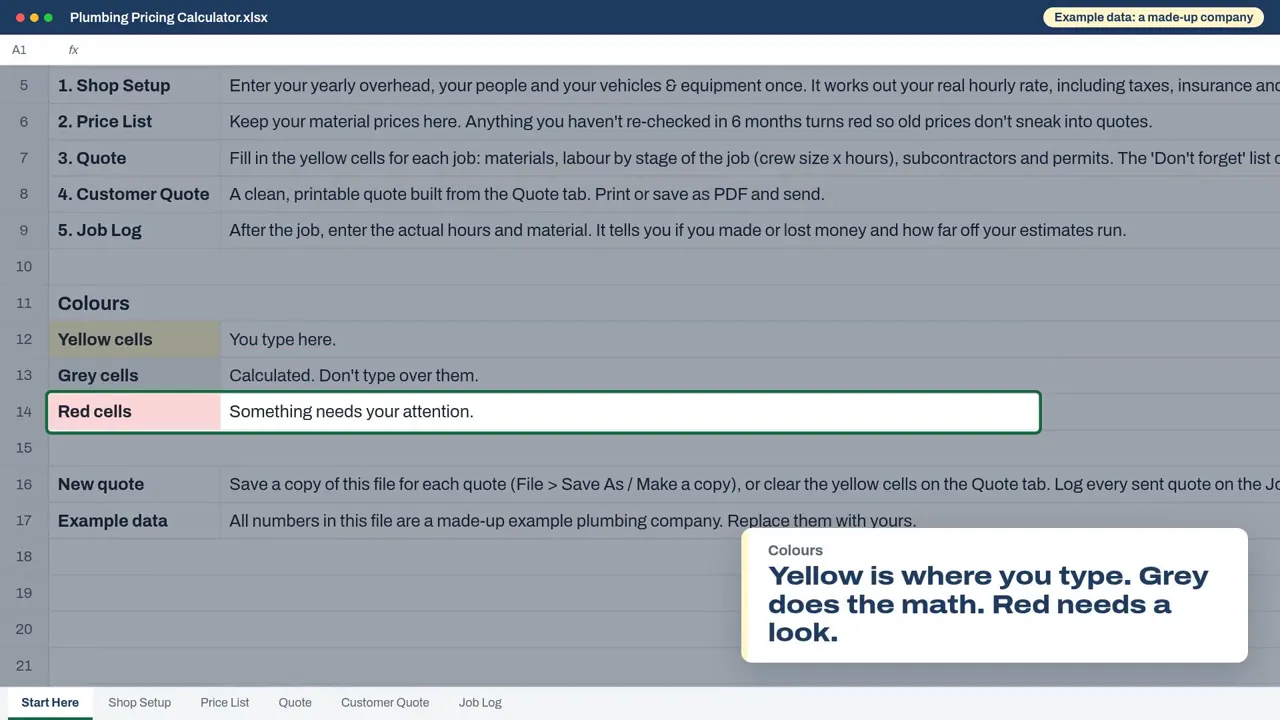
The Start Here tab, showing what each tab does and what the yellow, grey and red cells mean Fill in Shop Setup: what your business costs
About an hour, once a year
This is the most important tab. Work down it in order:
- A. Yearly overhead: everything that isn't materials or wages, per year. Rent, insurance, phone, software. Leave vehicle and equipment payments for section C.
- B. People: one row per person, you included. Put in the hourly wage, the paid hours per year and the share of that time that's paid work on a job. Driving, quoting and supply runs don't count as paid work, which is why nobody is 100%.
- C. Vehicles and equipment: each one's yearly payment, its upkeep and fuel, and how many hours a year it runs.
- D. Pricing rules: your profit, markups, safety cushion, minimum charge, deposit and sales tax. Then your business name and phone, which go on the customer quote.
When it's filled in, the grey break-even rate shows what every paid hour has to bring in just to cover your costs, before any profit. That's your real hourly rate, and every quote is built on it.
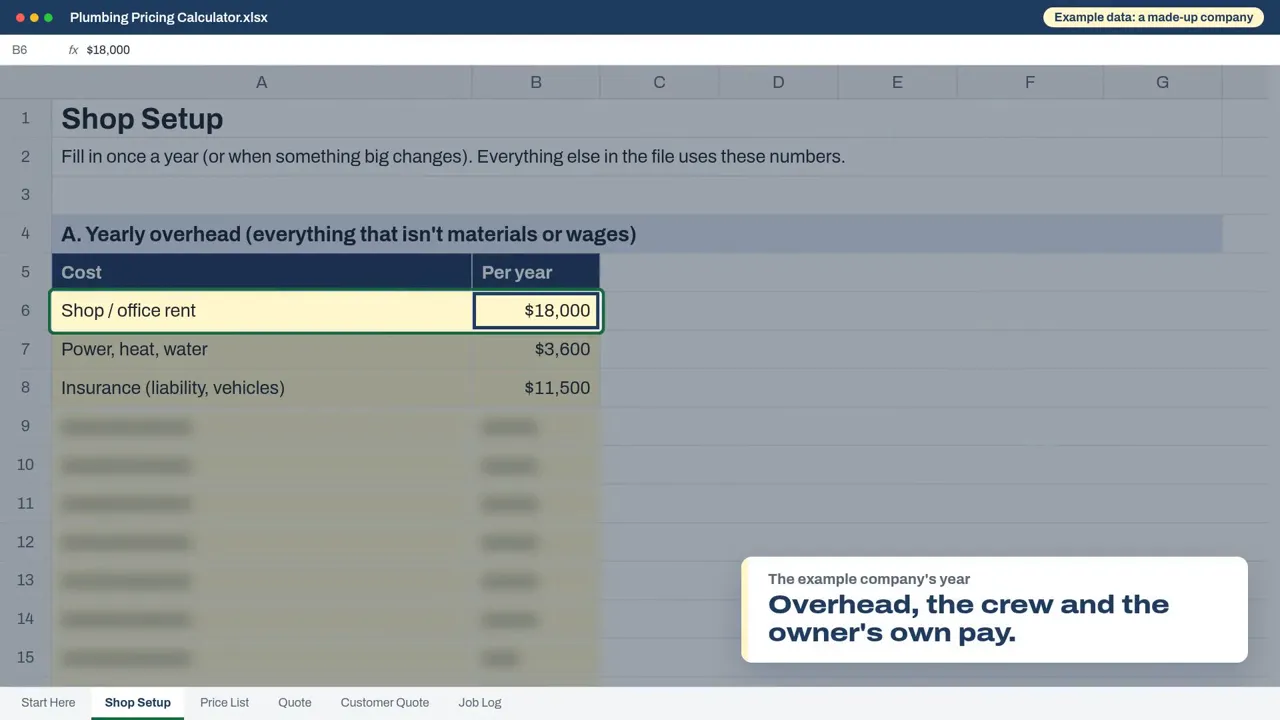
Shop Setup, section A: typing the yearly overhead 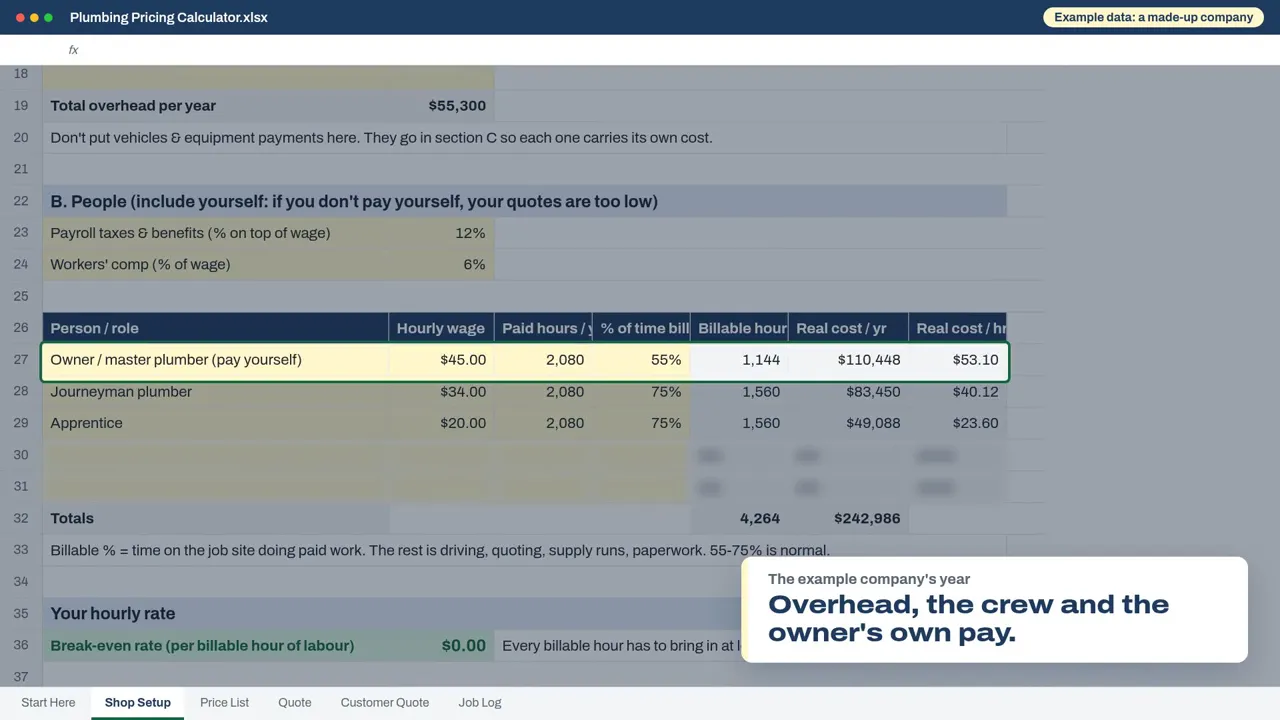
Shop Setup, section B: one row per person, including the owner 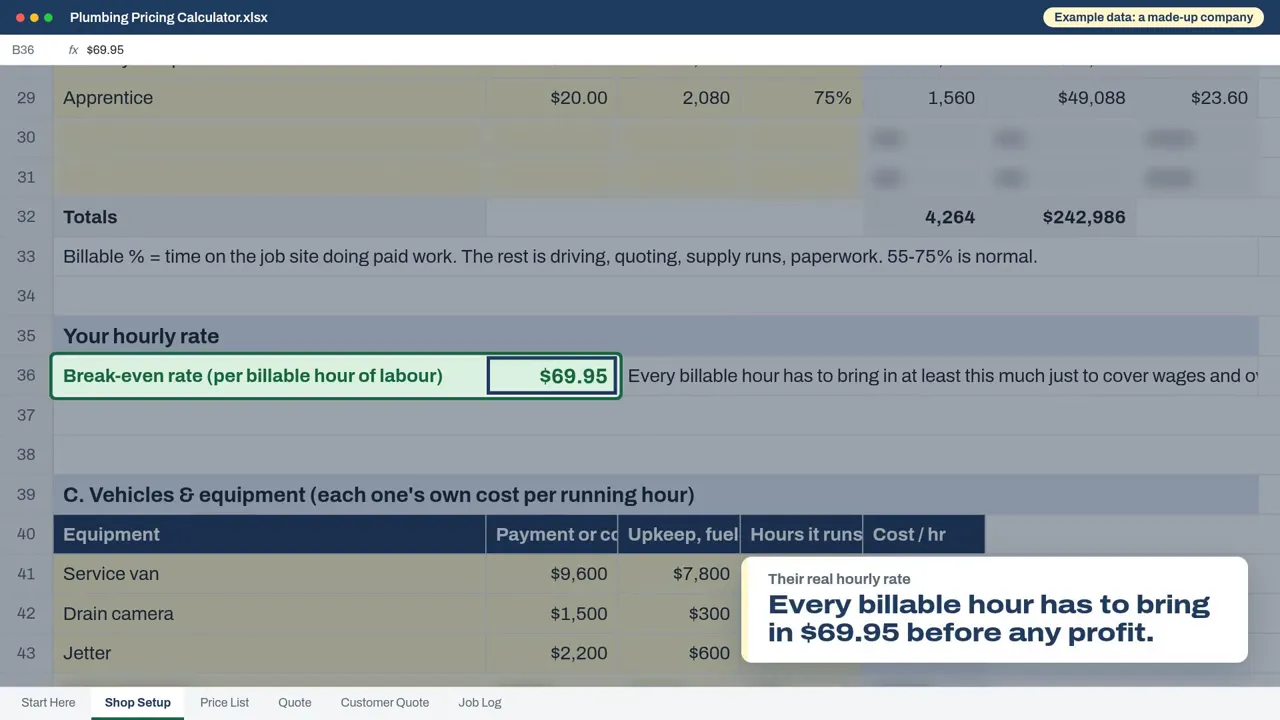
Shop Setup: the break-even rate, worked out from the costs above Put your prices in the Price List
20 to 30 minutes
Replace the example items with the materials you use most: what you pay, the unit, the supplier and the date you checked it. You don't need every item on day one. Start with the ones on most of your jobs.
Any price older than six months turns red, so an old price never sneaks into a quote. Update the date each time you check a price.
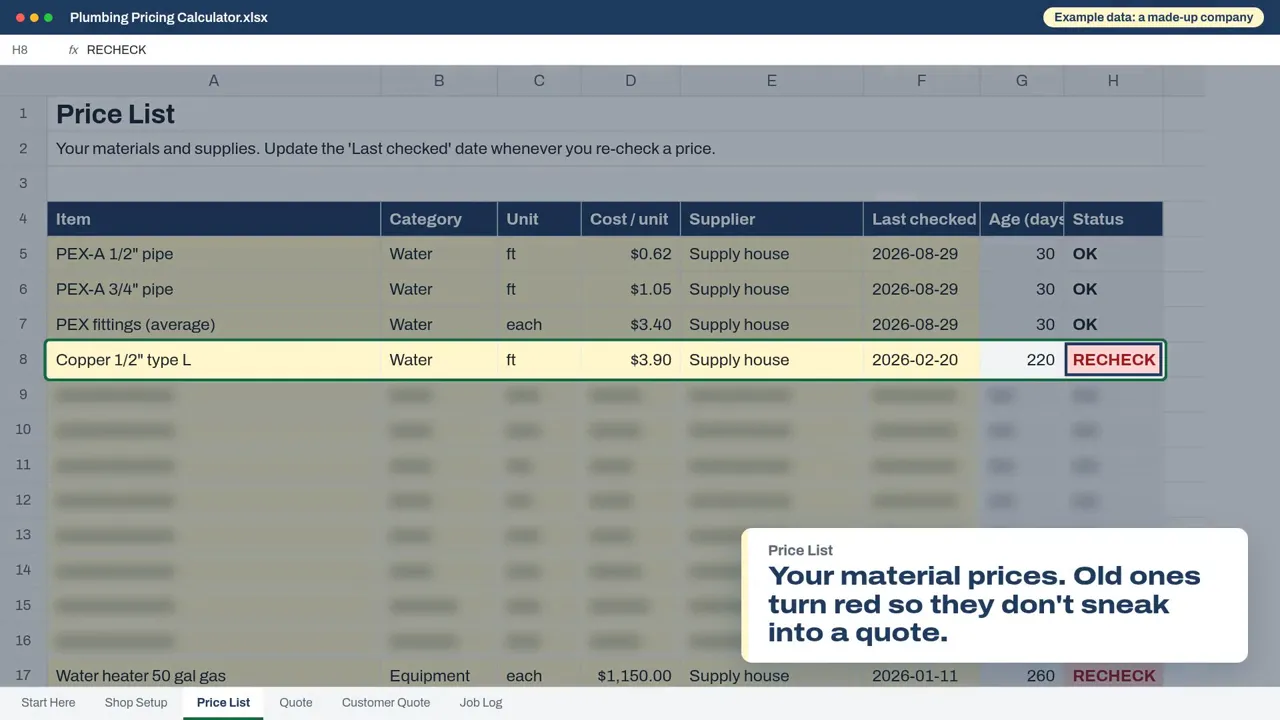
The Price List, with an old price flagged in red Build your first quote
15 minutes the first time, faster after that
On the Quote tab, fill in the yellow cells from the top:
- The customer and the job: quote number, date, name, contact and address.
- Materials: pick each item from your Price List and type the quantity. The cost fills in by itself.
- Labour: each stage or step of the job, with the crew size and hours (or, for shops and route services, the setup and minutes). It's priced at your real rate.
- Outside costs: subs, permits, rentals and dump fees.
The price section at the bottom adds your markup, safety cushion and profit, and shows the price for the job.
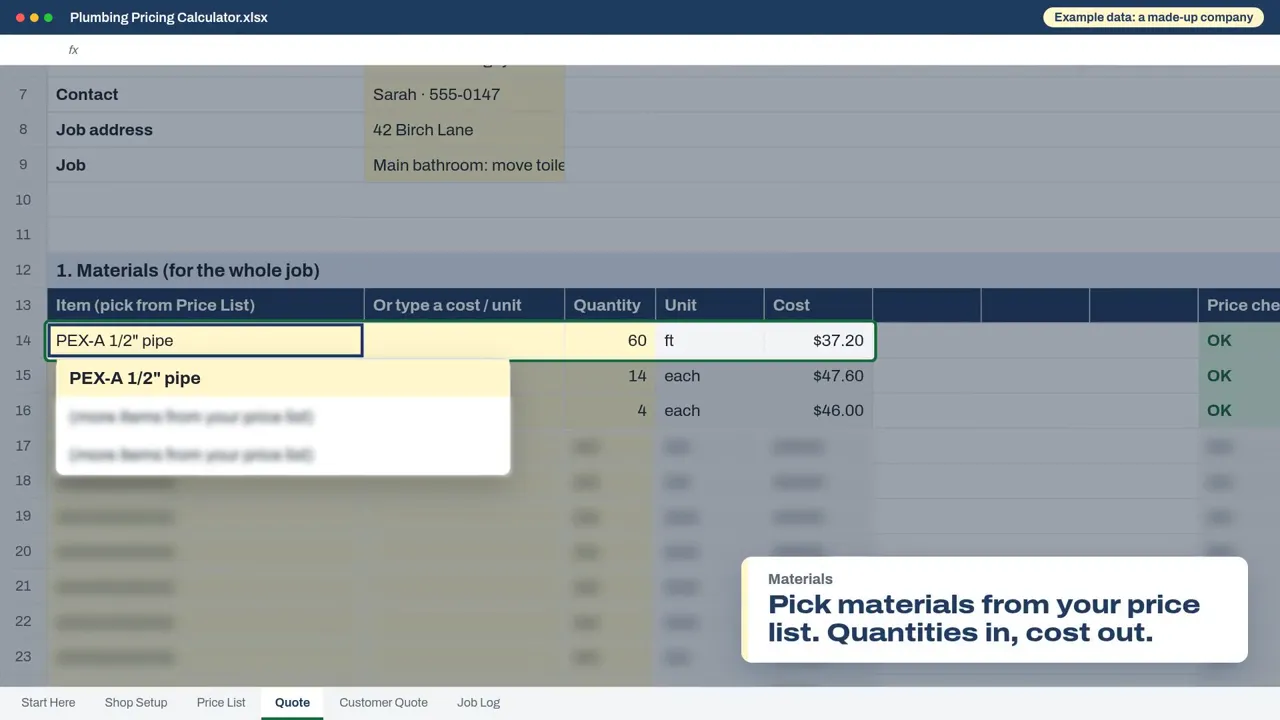
The Quote tab: picking a material from the Price List 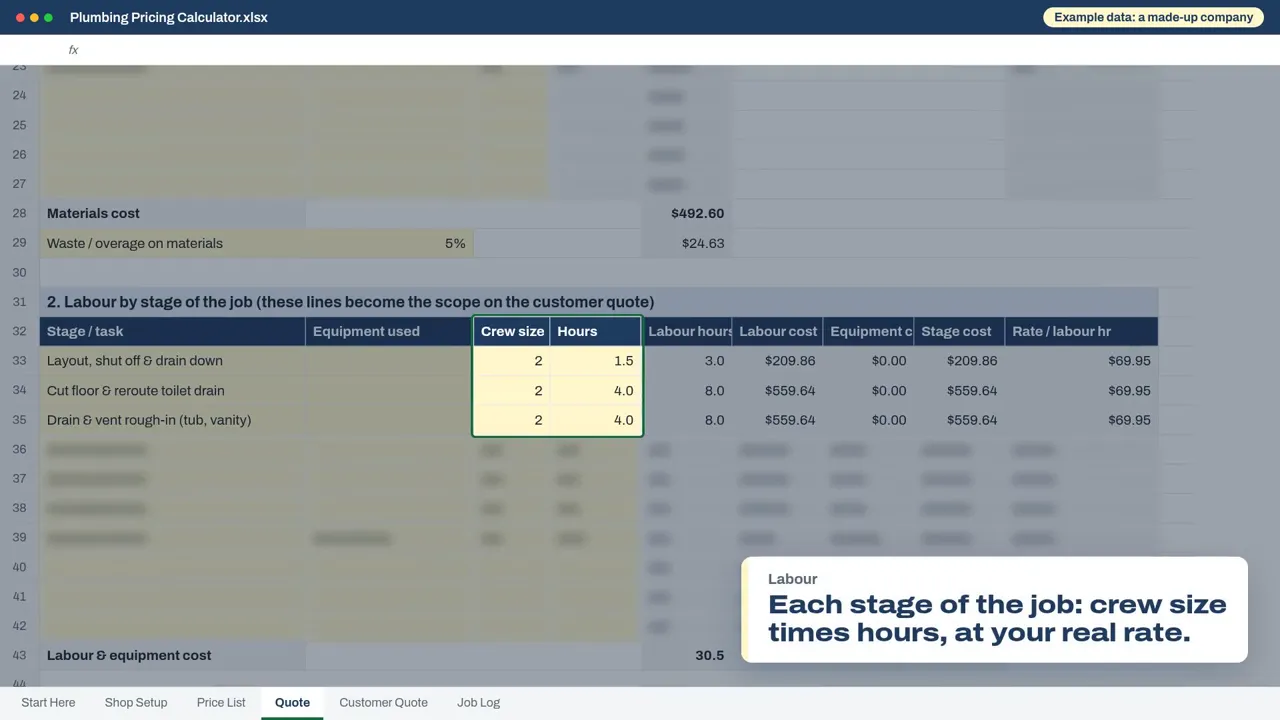
The Quote tab: labour by stage, with crew size and hours 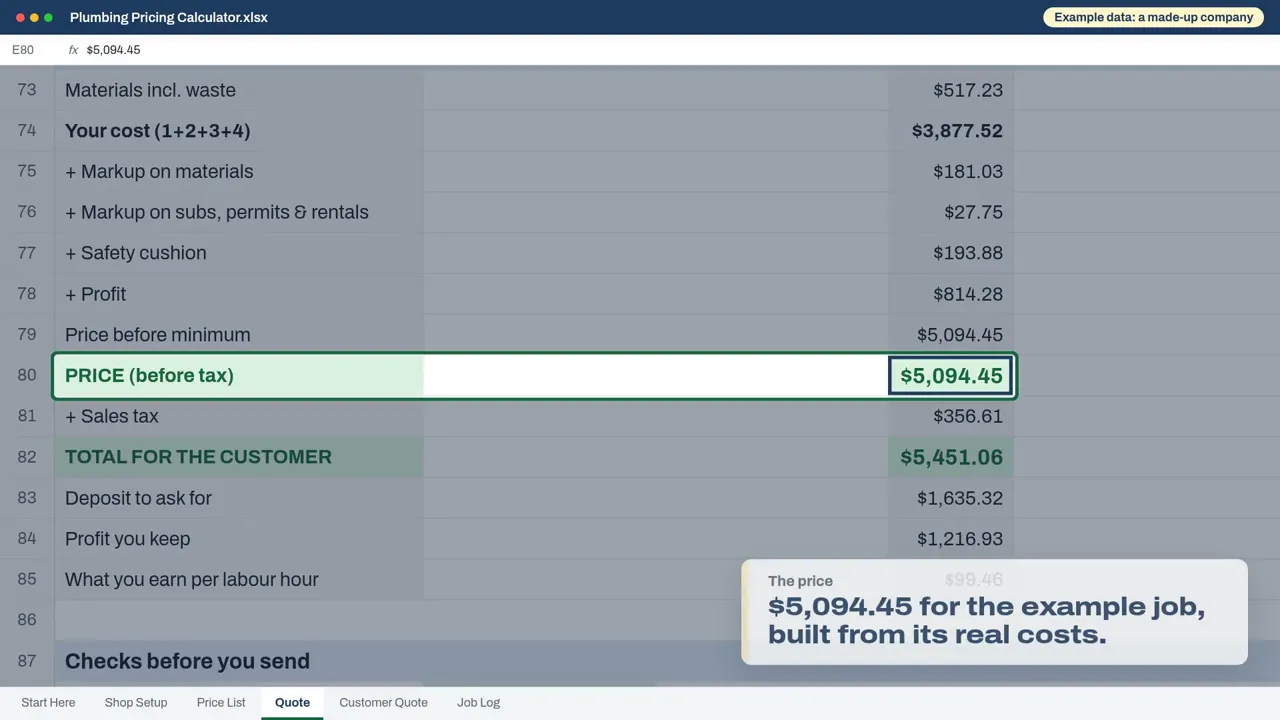
The Quote tab: markup, cushion and profit added, with the price before tax Answer the don't-forget list
2 minutes
Under the quote is a list of costs owners in your trade often forget to charge for. Answer every line with Yes (and the hours or dollars), N/A if it really doesn't apply, or leave it at No for now. Anything left at No shows red.
The Checks before you send box then tells you if anything is missing or out of date. When every line says OK, the quote is ready.
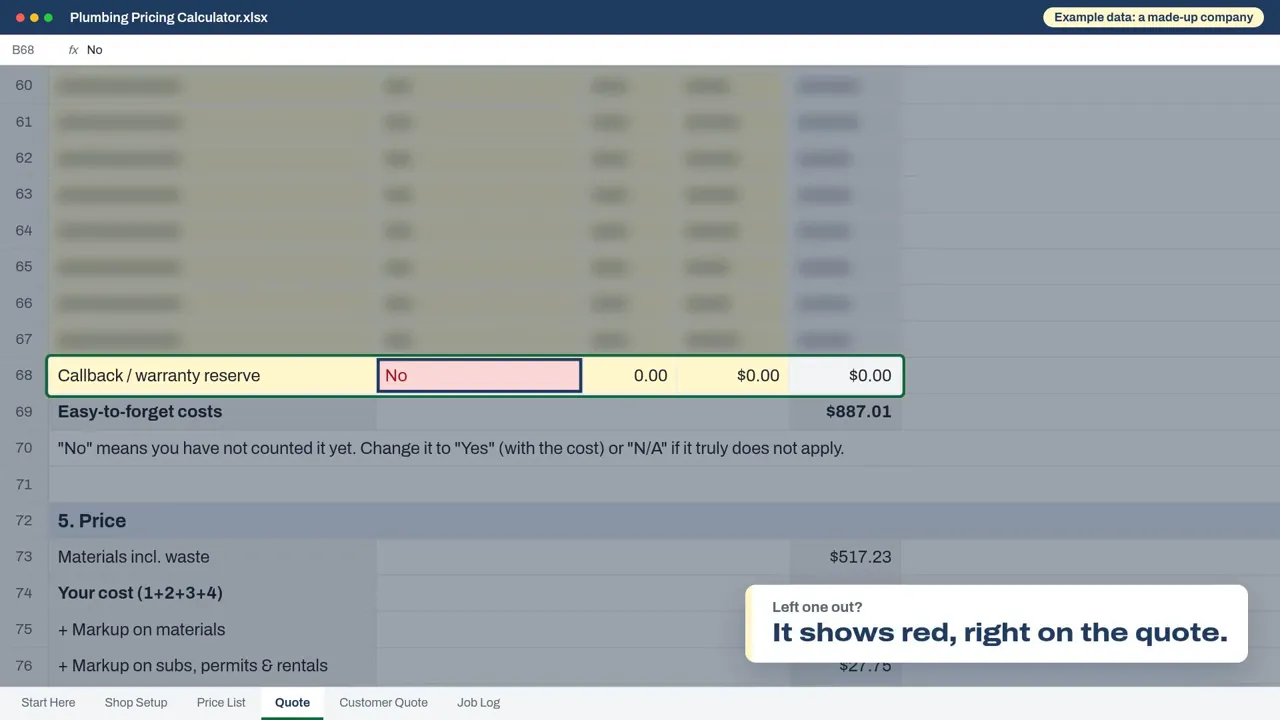
The don't-forget list, with one line left as No in red 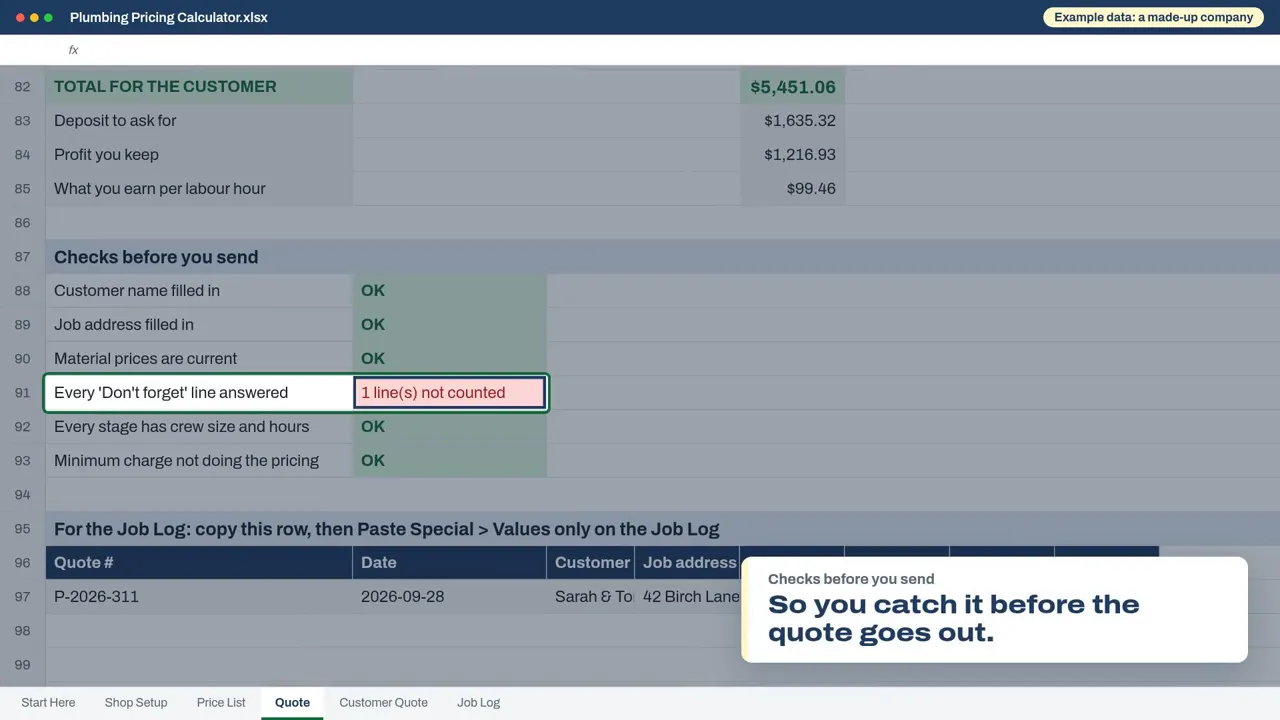
Checks before you send, flagging the line that isn't counted yet Send the customer quote as a PDF
2 minutes
The Customer Quote tab builds a clean one-page quote from the Quote tab: scope, price, deposit and your terms. Check the terms and edit them to suit you, then save just that tab as a PDF:
- Excel: open the Customer Quote tab, choose File, Print, set it to Print Active Sheets, and save as PDF.
- Google Sheets: choose File, Download, PDF, and pick Current sheet.
Then save a copy of the whole file for that job, named after it, like “Q-104 Smith driveway”. Your next quote starts from a fresh copy.
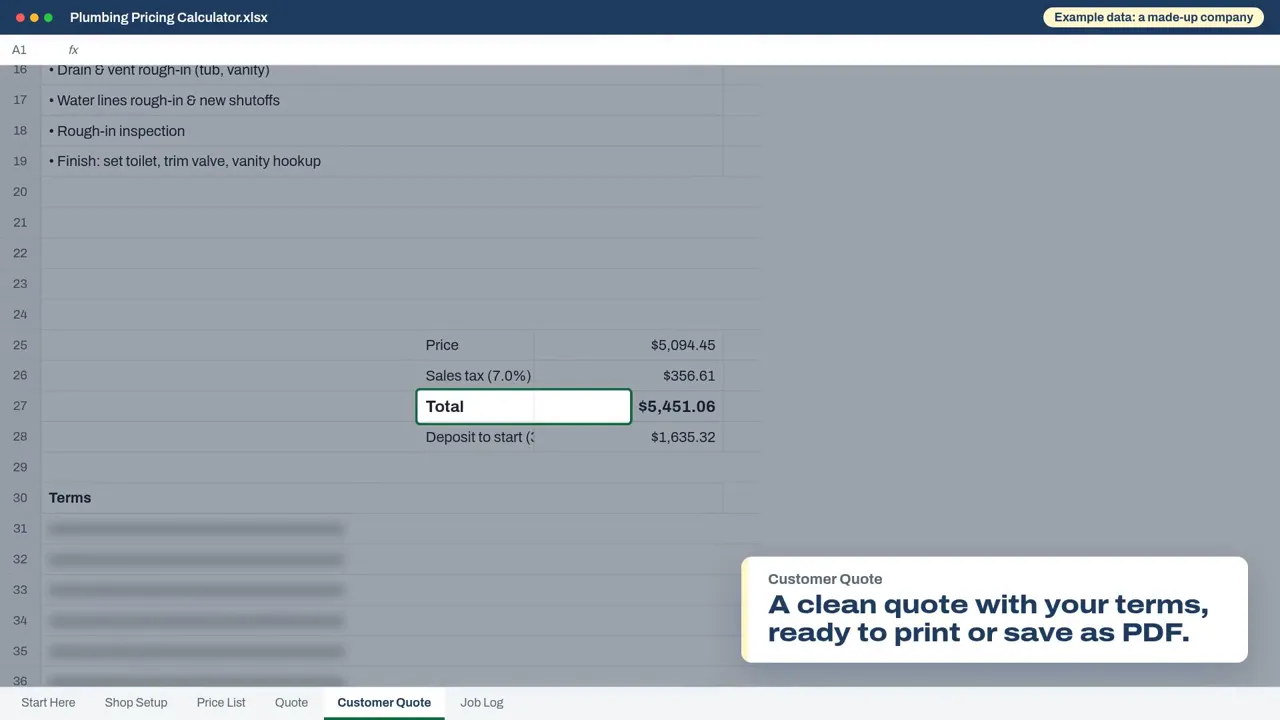
The Customer Quote tab, ready to print or save as PDF After the job, check your estimate in the Job Log
5 minutes per job
Log every quote you send on the Job Log tab. At the bottom of the Quote tab is a row made for it: copy it, then paste it into the Job Log as values only. After the job, add whether you won it, the real hours and the real materials.
The Job Log shows how far off your estimates ran. If a kind of job keeps running over on hours, you'll see it, and you can quote the next one with more time in it.
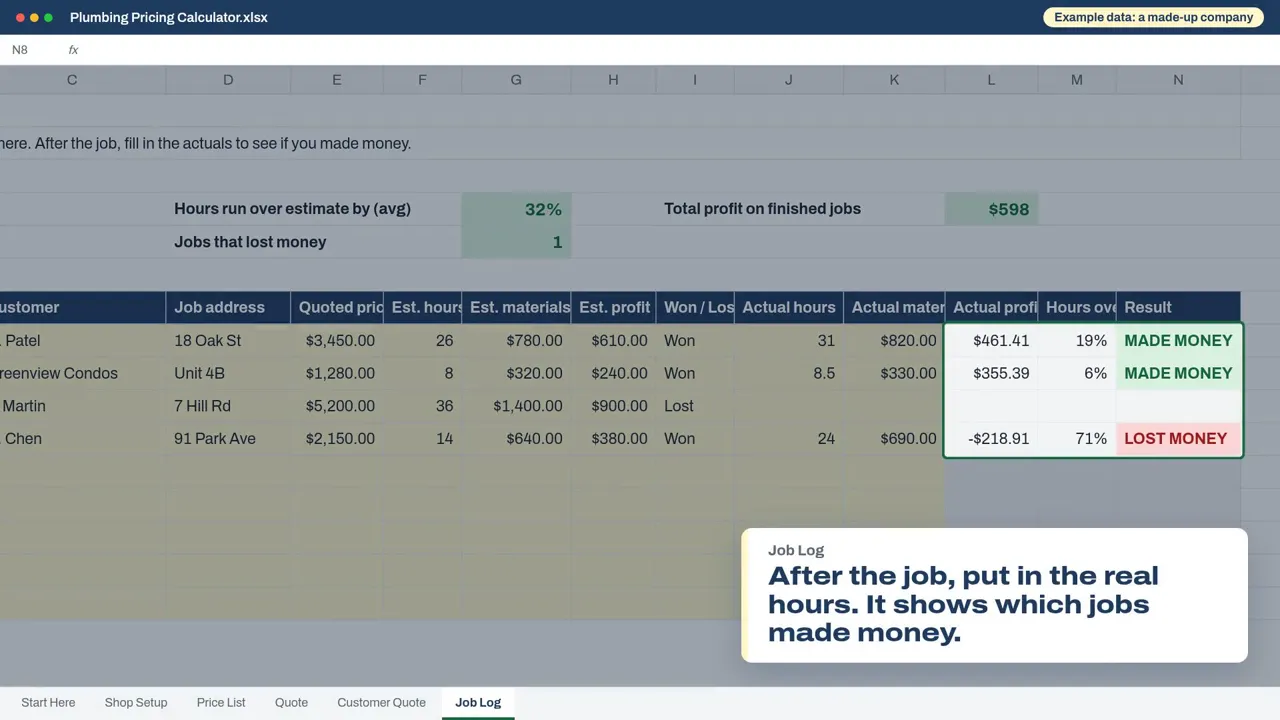
The Job Log, comparing quoted and real hours for each job Keep it up to date
- Once a year, or when something big changes (a new hire, a new truck, a rent increase), update Shop Setup.
- When a supplier changes a price, update it in the Price List with today's date.
- Every few months, look at the Job Log for jobs that keep running over, and adjust how you estimate them.
Stuck on a step?
See Help for the common questions, or watch your trade's walkthrough video on its calculator page. Still stuck? Email support@truetradecost.com.